![superfy Logo-Neg-4.png]](https://knowledge.superfy.com/hs-fs/hubfs/superfy%20Logo-Neg-4.png?height=30&name=superfy%20Logo-Neg-4.png)
A route has three tabs, and you work through them in order:
|
Tab |
What you set up there |
|
Route |
Name, start and end location, notes for the driver, repeat settings |
|
Stops |
The depot, containers and locations the driver will visit |
|
Schedules |
The date, time, driver and vehicle for each run |
Step 1: Open the Routes menu
- In the left menu of the Collections Module, click Scheduling. It expands to show Schedules, Routes and Vehicles.
- Click Routes.
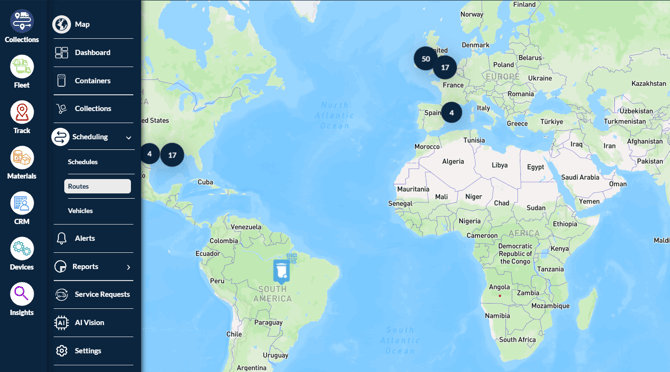
The Routes list shows every route with its Name, Next Schedule and Action. Use Search Route Name to find an existing route.
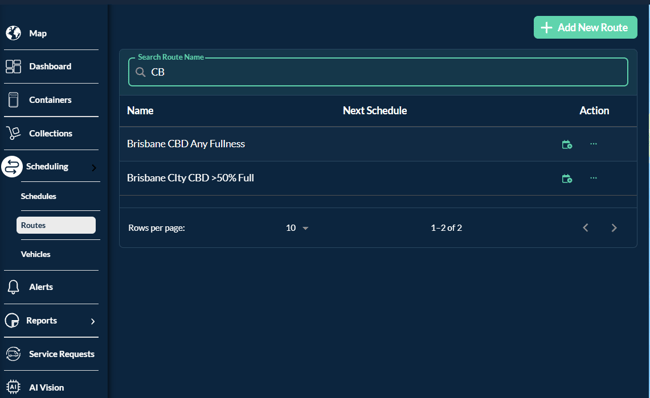
Step 2: Create a new route
-
Click + Add New Route at the top right of the list.
-
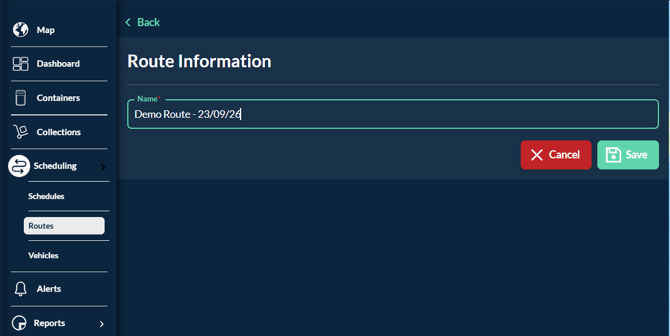
Under Route Information, type a Name for the route, for example Dublin Route.
-
Click Save. Click Cancel instead if you want to go back without creating it.
A Route successfully created message appears. The route then opens in edit mode with three tabs, Route, Stops and Schedules, and a map on the right.
Step 3: Add the route details (Route tab)
- Select a Start Location from the dropdown, for example Houston.
- Select an End Location. It can be the same as the start. A Start/End marker then appears on the map.
- In Notes, add anything the driver should know. The note appears in the route summary in the driver app.
- If the route runs on a regular pattern, add a Repeat Configuration so its schedules are created automatically. Add your stops in Step 4 before setting this up (see below).
If you do not add the stops first, the first schedule created by the Repeat Configuration will not have any stops associated with it.
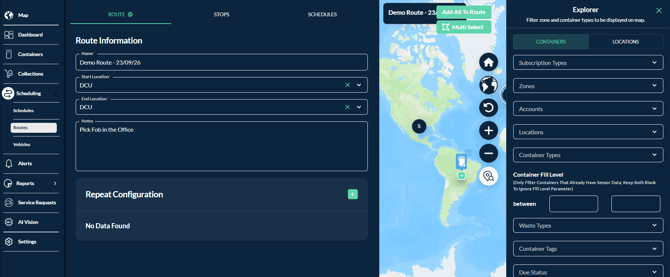
You don't need to click Save on this tab. Changes save automatically, and Saving briefly appears at the bottom of the form.
Set up a repeat configuration (optional)
Use a repeat configuration when you want the route to create repeating schedules for you, instead of adding each run by hand in Step 6.
- Stops added first, then repeat configuration: the stops are included in the schedules it creates.
- Repeat configuration added before the stops: the first schedule it creates won't include any stops.
You don't need to create a schedule yourself (Step 6). The repeat configuration creates the schedules for you.
- Click + next to Repeat Configuration. The Add New Repeat Configuration window opens.
- Choose Weekly or Monthly at the top, then fill in the fields for that option (below).
- Under Assignment, choose the Vehicle and Driver for these runs.
- Click Save.
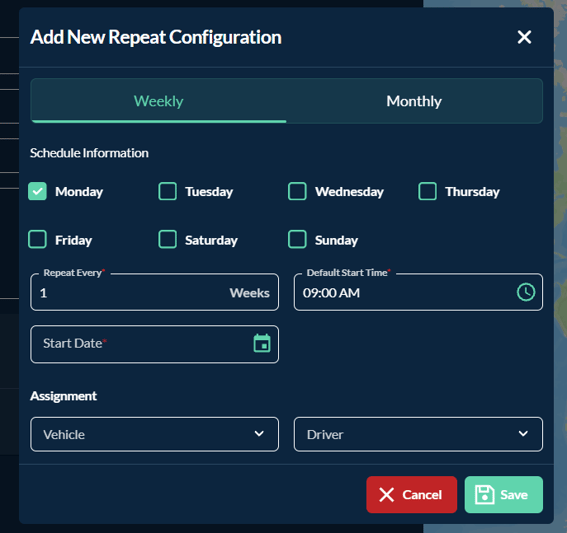
Weekly
- Under Schedule Information, tick the day or days the route runs, for example Monday.
- In Repeat Every, enter how often it repeats in weeks, for example 1 for every week or 2 for every other week.
- Set the Default Start Time, for example 09:00 AM.
- Pick a Start Date from the calendar. This is when the repeating schedules begin.
Repeat Every, Default Start Time and Start Date are required.
Monthly
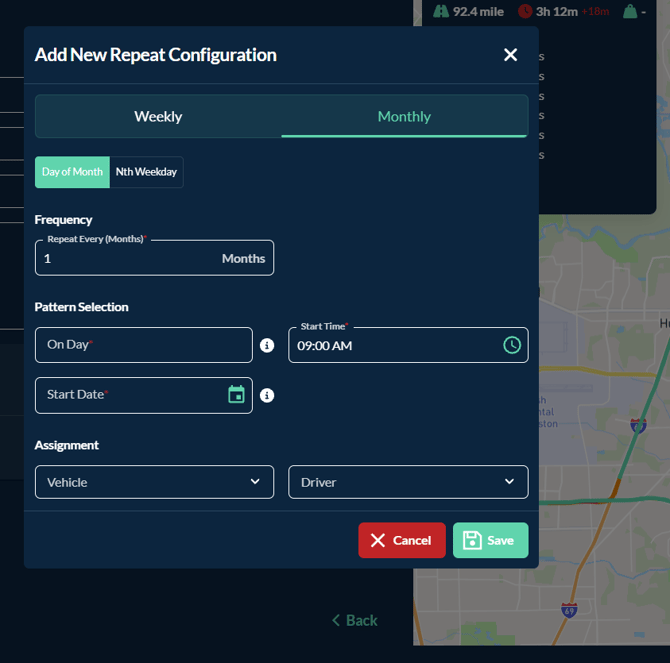
- Choose how the day is picked:
- Day of Month: the same date each month, for example the 15th
- Nth Weekday: a set weekday each month, for example the first Monday
- Under Frequency, enter Repeat Every (Months), for example 1 for every month or 3 for every quarter.
- Under Pattern Selection, fill in On Day. Hover over the i icon beside it for guidance.
- Set the Start Time, for example 09:00 AM.
- Pick a Start Date from the calendar.
All of these fields are required.
Step 4: Add stops (Stops tab)
Click the Stops tab. You can add stops one at a time by searching, or several at once from the map.
Add a single stop
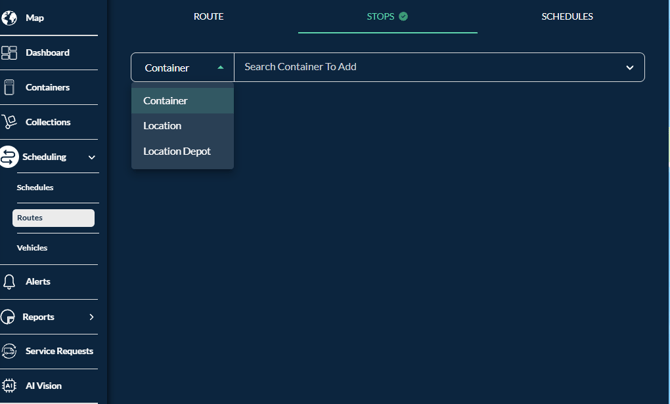
- Choose the stop type from the dropdown on the left:
- Container: a single container, shown with its size (for example 55 gal)
- Location: a customer site
- Location Depot: a depot, usually the first stop
- Start typing in the search box next to it and select the stop from the list.
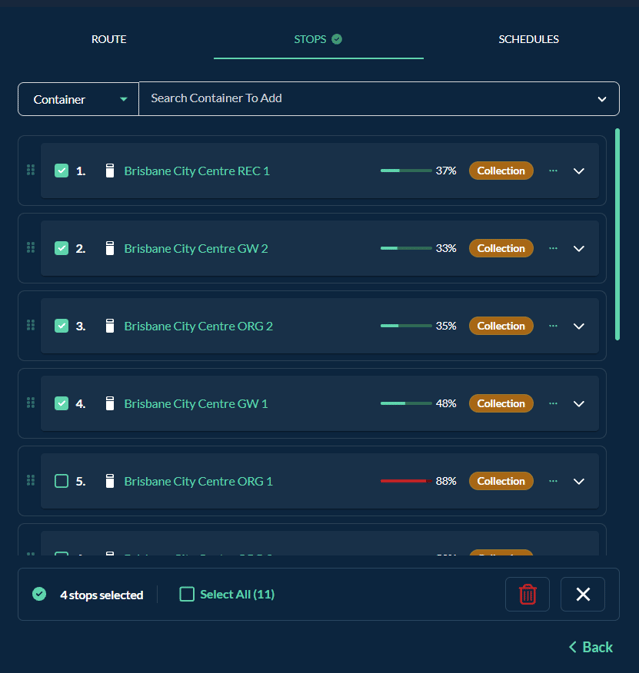
The stop is added to the list with a number and a tag. A depot shows as Depot stop, and a container shows as Collection or Deployment (if this is a container that requires a deployment). Click the arrow on a stop to expand it, or drag it by the handle on the left to change its position.
Switch the map between container and location view
The map shows either containers or locations, and you can add stops only for what it's showing. Switch the view to match the type of stop you want to add.
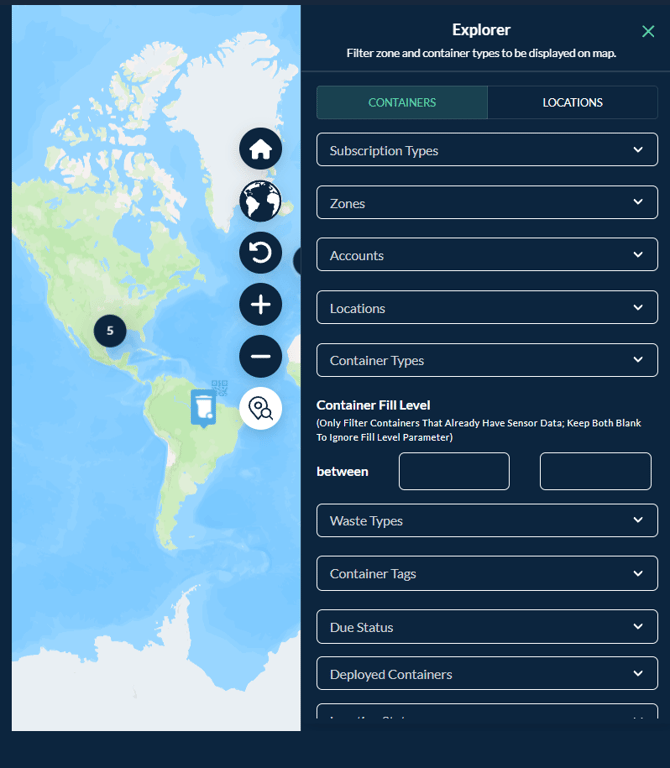
- To add containers as stops: click Containers at the top of the Explorer panel. The map shows container markers, and the Explorer filters by zone and container type.
- To add locations as stops: click Locations at the top of the Explorer panel. The map shows location markers (each with a + to add it), and the Explorer filters by account and location details such as Customer Tier, Depot and Region.
In location view, you can also click the container icon at the top of the map controls (Show Containers) to switch back to container view.
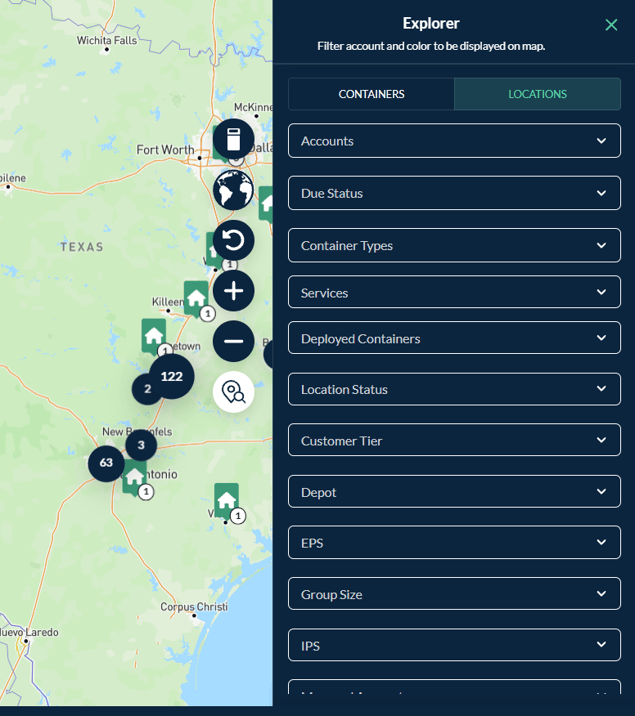
Tip: in location view, tick Show Locations Already Scheduled or Show Containers Already Scheduled at the bottom of the Explorer to also see locations and contianers already on another route.
Find and add containers or locations from the map
- Use the Explorer panel on the right to narrow down what shows on the map. Its Containers and Locations tabs have filters such as:
- Subscription Types, Zones, Accounts, Locations and Container Types
- Container Fill Level (between two values; only works for containers with sensor data, so leave both blank to ignore it)
- Waste Types, Container Tags, Due Status and Deployed Containers
- Location fields such as Status, Customer Tier, Depot, Group, Market and Region
- For example, choose Zone NGS - Houston and Account Knights of Columbus. The map zooms to the matching containers.
- Click Multi Select, then click around the containers on the map to draw a shape over them. They're added to the stop list as Collection stops. Click Cancel to leave Multi Select without adding anything.
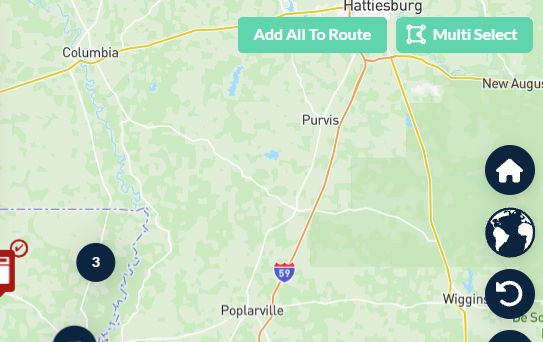
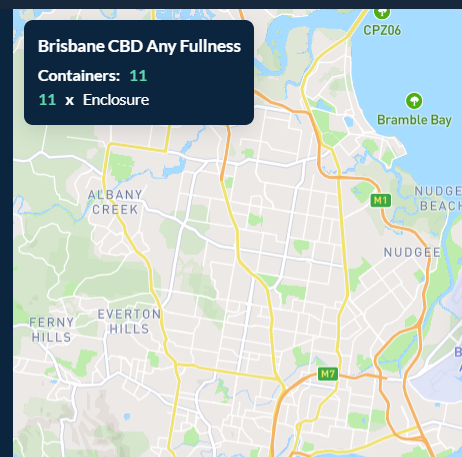
The summary box at the top of the map keeps a running count, for example Location: 1, Containers: 3, 3 × UCO - 55 Gals.
View, manage and remove stops
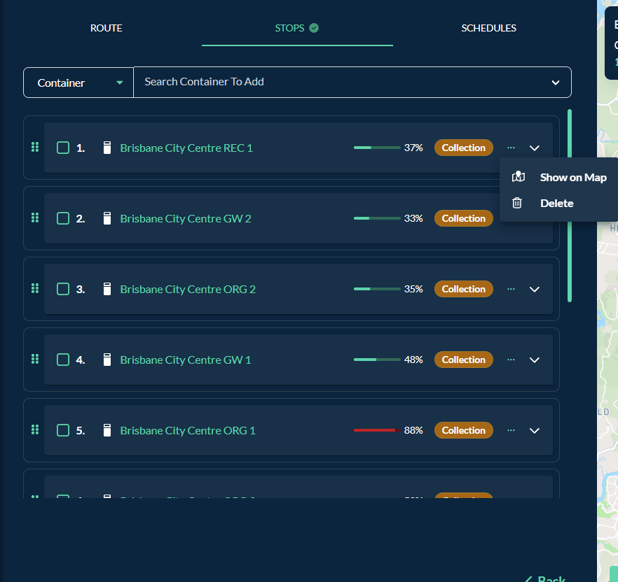
Click the arrow on the right of a stop to open its Stop Details. These show the address, account, location, due date (for example Overdue 5 Days), container type, waste type and any driver note. You can also change the Stop Time (min), which starts at the location's default stop time.
To remove one stop:
- Click the … menu on the stop.
- Click Delete. Click Show on Map instead if you just want to find the stop on the map.
To remove several stops at once:
- Tick the checkbox next to each stop you want to remove. A bar at the bottom shows how many are selected, for example 4 stops selected. Tick Select All to select every stop.
- Click the bin icon in the bar to delete the selected stops. Click X instead to clear the selection.
Step 5: Review the route on the map
- Close the Explorer panel with the X at its top right to see the full map.
- Use the buttons along the bottom of the map to check the route:
- Optimize Route: works out the most efficient order to visit your stops, starting from the route's start location
- Show Route Stops: shows the route's stops on the map
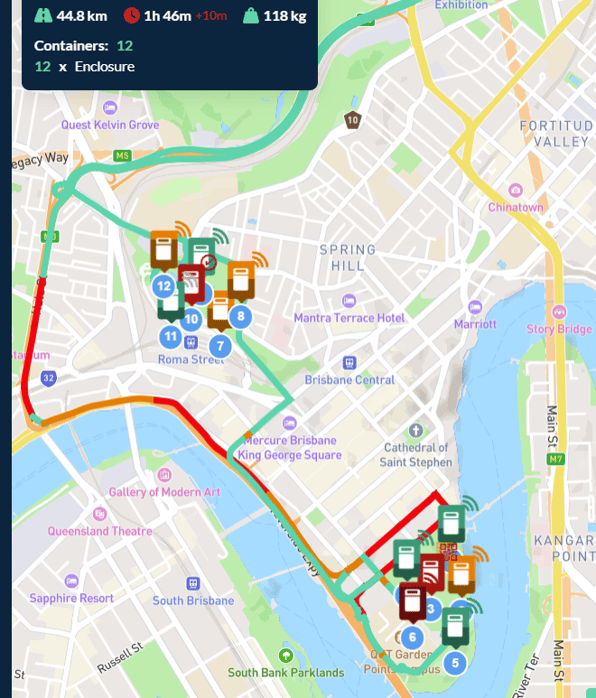
- Preview Route: draws the driving route on the map with each stop numbered in order, and shows a route summary (see below)
- Use the map controls on the right to recentre (home), change the map view, reset, and zoom in or out.
Reading the route preview
When you click Preview Route, the summary box at the top left of the map shows:
- Total distance for the whole route, for example 92.4 mile
- Estimated drive time, for example 1h 46m. A red figure beside it means the route will take longer than usual. For example, +10m means 10 minutes longer than usual.
- Containers: the total number of containers, broken down by type and size (for example 4 × UCO - 140 Gals)
The numbered markers on the map match the stop numbers in the Stops list. Click Cancel Preview at the bottom right of the map to return to the normal view.
If the order isn't right, go back to the Stops tab and drag stops into place.
Step 6: Add a schedule (Schedules tab)
- Click the Schedules tab. It lists the route's schedules, with a search box, a Status filter and an Archived toggle.
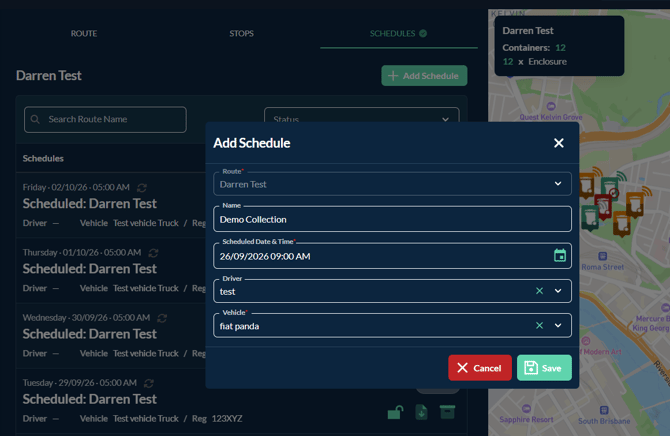
- Click + Add Schedule.
- The Route field is filled in for you. Enter a Name for this run, for example Dublin Collection - Monday.
- Click the calendar icon in Scheduled Date & Time and pick the date, hour, minutes and AM/PM.
- Select a Driver from the list.
- Select a Vehicle from the list.
- Click Save.
Tips and troubleshooting
- Can't see any containers on the map? Clear some Explorer filters, or zoom out. Filters combine, so each one you add narrows the results.
- Fill level filter hides everything? It only matches containers with sensor data. Leave both boxes blank to ignore it.
- A container is missing from the map? It may already be on another route. Tick Show Containers Already Scheduled.
- Added the wrong containers with Multi Select? Tick them in the Stops list and delete them in one go with the bin icon, then draw the shape again.
- Need to leave a form? Use Back at the bottom of the route screen, or Cancel on a form, to exit without adding anything.