![superfy Logo-Neg-4.png]](https://knowledge.superfy.com/hs-fs/hubfs/superfy%20Logo-Neg-4.png?height=30&name=superfy%20Logo-Neg-4.png)
In this article
Before you start
|
You will need |
Details |
|---|---|
|
Replacement batteries |
2 × ER26500 Li-SOCl2, 3.6 V, 9000 mAh |
|
Allen key |
2 mm, for the 6 cover screws |
|
Smartphone with NFC |
ToolBox App installed, phone case removed |
|
Screwdriver |
To remove the sensor from the container |
|
Clean, dry cloth |
To wipe the seal and the ultrasonic horns or laser lens |
Safety notes
- Always replace both batteries at the same time. Never mix old and new cells.
- Use only ER26500 Li-SOCl2 cells. Other battery types can damage the sensor.
- Open the sensor indoors or in a dry, clean place. Water or dirt on the seal can break the IP67 rating.
- Do not short, crush, heat or recharge lithium batteries. Recycle used cells according to local regulations.
Replace the batteries
-
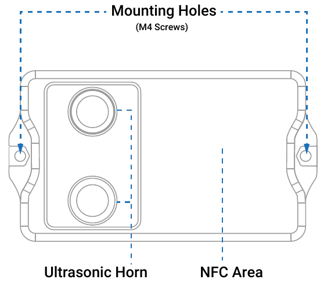
Check the sensor, if it responds. Open the ToolBox App, tap the NFC icon and hold your phone against the NFC area of the sensor. If the batteries are flat, the app cannot read the sensor, so skip to step 3. Otherwise, note the Battery level under Basic Information.
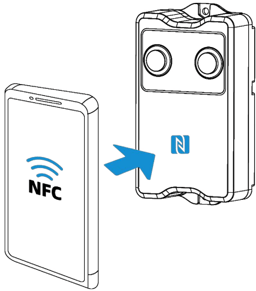
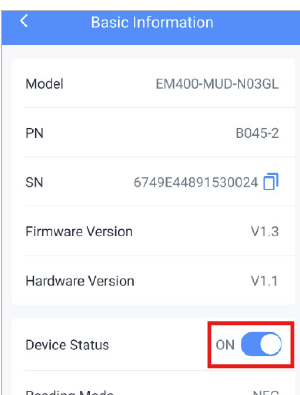
- Turn the sensor off. In Basic Information, tap the Device Status toggle to Off, then hold the phone against the sensor again to apply the change. Skip this step if the app could not read the sensor.
- Remove the sensor from the container (recommended). Undo the mounting bolts or bracket screws so you can work on a clean, dry surface. Keep all fixings together.
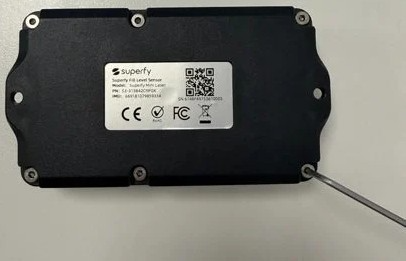
- Remove the cover. Turn the sensor over so the label faces up. Use a 2 mm Allen key to remove the 6 screws around the edge of the cover. Lift the cover off slowly and straight up so you do not damage or dislodge the internal rubber seal.
- Remove the old batteries. Note which way each battery faces before you remove it. Lift both batteries out of their holders.
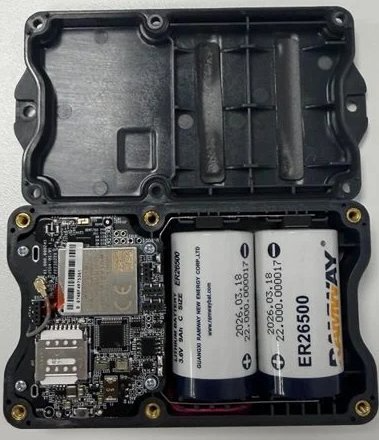
- Fit the new batteries. Insert 2 new ER26500 batteries, matching the + and – markings on the battery holder. The + end of each battery goes at the end of the holder with the red wires. Make sure both batteries sit firmly in place.
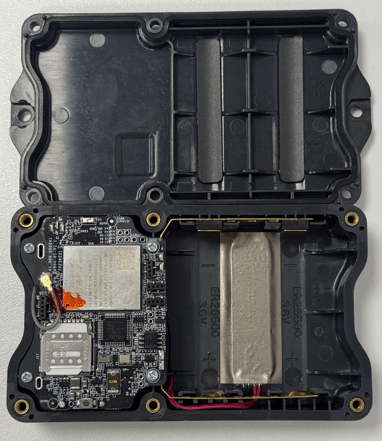
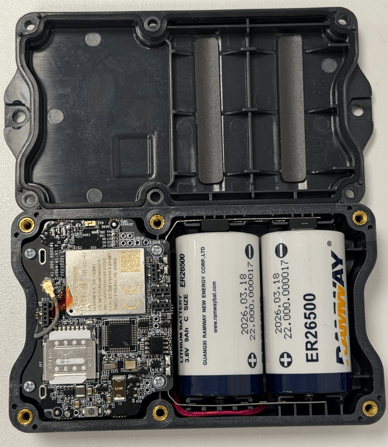
- Check the seal. Wipe the seal and the edge of the cover with a dry cloth. Make sure the seal sits evenly in its groove with no dirt, twists or gaps.
- Refit the cover. Place the cover back on and tighten all 6 screws evenly, working in a cross pattern. Do not overtighten.
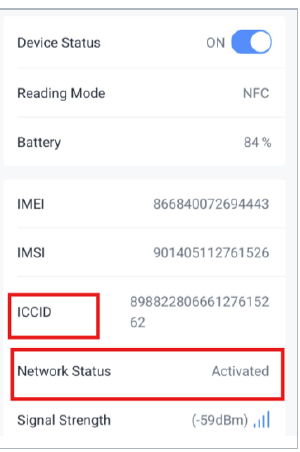
- Turn the sensor on. In the ToolBox App, scan the sensor, open Basic Information and set Device Status to On. Scan again until the status shows Activated, as described in the installation guide.
- Reinstall the sensor. Mount it in the same position as before, with the ultrasonic horns or optical laser facing down towards the centre bottom of the container.
Check the sensor is working
After you power the sensor back on, scan it once more with the ToolBox App and confirm:
- Battery shows close to 100%.
- Network Status shows Activated and an ICCID number is visible.
- Signal Strength shows a reading.
Then check the Superfy App or Platform for a new fill level reading. If you mounted the sensor in exactly the same position, you do not need to re-enter the Fill Height or Fill Gap on the Superfy platform.
Troubleshooting
|
Problem |
What to try |
|---|---|
|
ToolBox App cannot read the sensor |
The batteries may be dead: check they are new and fitted the right way round. If they are, remove your phone case, hold the phone steady over the NFC area, then move it away and try again. |
|
Battery level still shows low |
Check both batteries are new, the correct type and fitted the right way round. |
|
Sensor powers on but does not report |
Check the signal strength. Power cycle the sensor (set Device Status to Off, then On, in the ToolBox App) and wait at least 5 minutes for a reading. |
|
Moisture inside the cover |
Turn the sensor off, dry it fully and check the seal before refitting the cover. |
If the sensor still does not work, email support@superfy.com with the serial number from the label on the back of the sensor.