![superfy Logo-Neg-4.png]](https://knowledge.superfy.com/hs-fs/hubfs/superfy%20Logo-Neg-4.png?height=30&name=superfy%20Logo-Neg-4.png)
In This Article
-
Overview
-
Before you start
-
Find the container you want to move
-
Option 1: Move the container to your current location
-
Option 2: Move the container to another area
-
Which option should I use?
-
Troubleshooting and FAQs
Overview
If a container's pin is in the wrong place on the map, you can move it from the Superfy App in a few taps. There are two ways to do it:
- Move Container to Current Location – places the pin exactly where your phone is, using your phone's GPS.
- Move Container to Another Area – lets you tap any spot on the map and places the pin there.
Both options are found in the menu that opens when you tap a container pin on the map.
Before you start
Only use Move Container to Current Location when you are physically standing at the container. The app moves the pin to wherever your phone is. If you use it from the office, your van or anywhere else, the pin will be saved in the wrong place and drivers will be sent to the wrong location.
You will need:
- The Superfy App open and signed in on your phone using your login credentials.
- Location (GPS) turned on and allowed for the Superfy App – needed for Move Container to Current Location.
- A clear GPS signal. Give your phone a few seconds to settle so the blue dot on the map is steady and close to the container before you move the pin.
Find the container you want to move
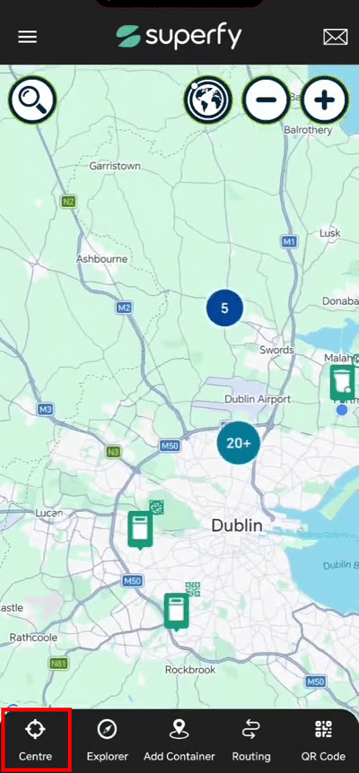
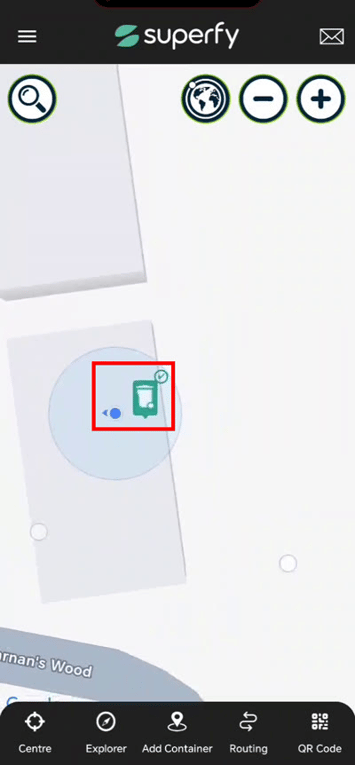
If you are standing at the container and its pin is already in the correct place, it will show on the map right beside your blue location dot. Tap Centre at the bottom of the screen to jump to where you are.
Otherwise, find the container in one of these two ways:
-
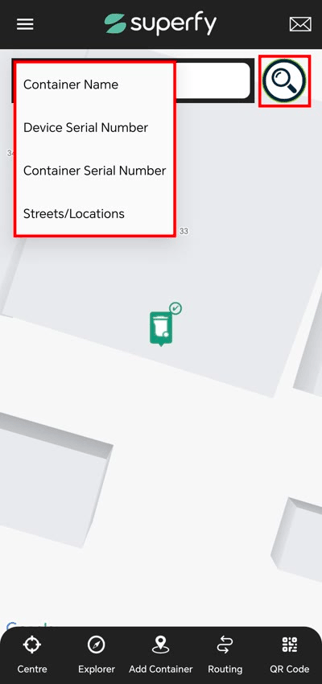
Search: Tap the magnifying glass at the top of the map. Choose what to search by: Container Name, Device Serial Number, Container Serial Number or Streets/Locations. Then enter your search.
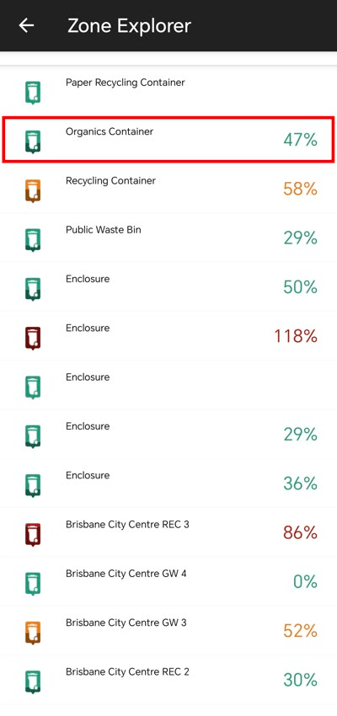
- Explorer: Tap Explorer at the bottom of the screen to see the full list of containers, with each container's fill level. Tap a container to go to it.
Option 1: Move the container to your current location
Use this when you are standing at the container and want the pin to match exactly where it is.
- Go to the container and stand right beside it.
- Open the Superfy App. Search for the container you want to move.
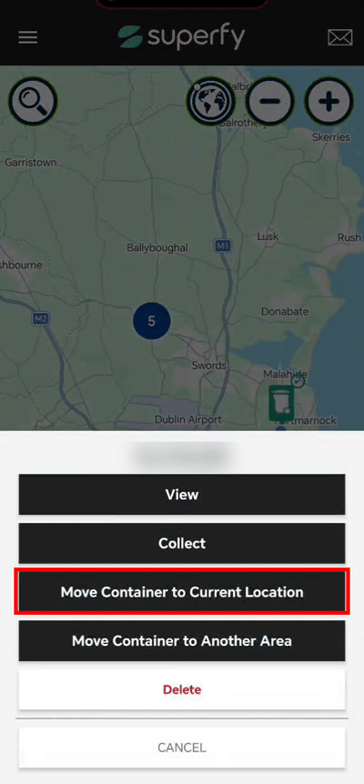
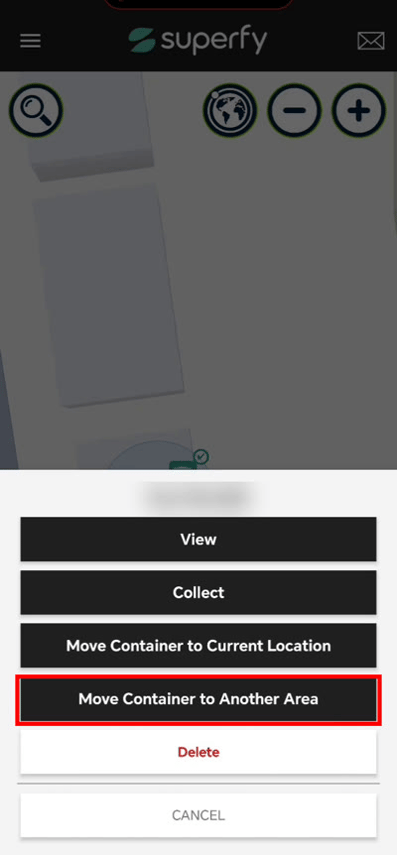
- Tap the container pin. A menu opens with the options View, Collect, Move Container to Current Location, Move Container to Another Area and Delete.
- Tap Move Container to Current Location.
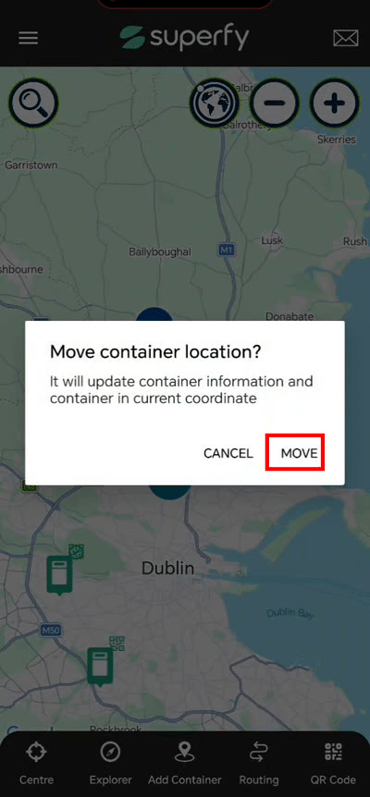
- A message appears: "Move container location? It will update container information and container in current coordinate." Tap MOVE to confirm, or CANCEL to go back.
-
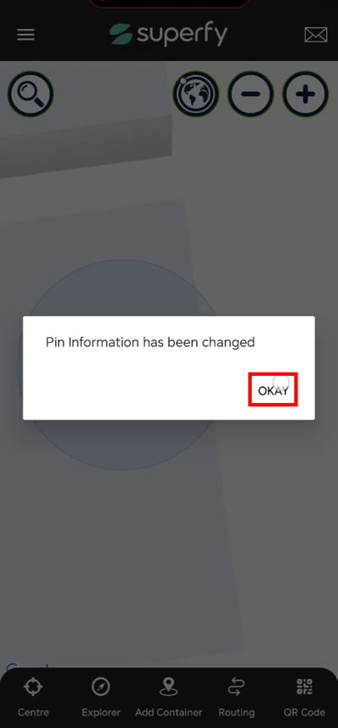
You will see "Pin Information has been changed". Tap OKAY.
-
Check the map. The container pin now sits on your blue location dot.
Option 2: Move the container to another area
Use this when you are not at the container, or you know exactly where on the map it should be.
- Open the Superfy App and tap the container pin on the map.
- In the menu, tap Move Container to Another Area.
- The map opens with the message "Tap anywhere to move container" at the bottom. Zoom and drag the map to find the correct spot. Zoom in close so you can place the pin accurately.
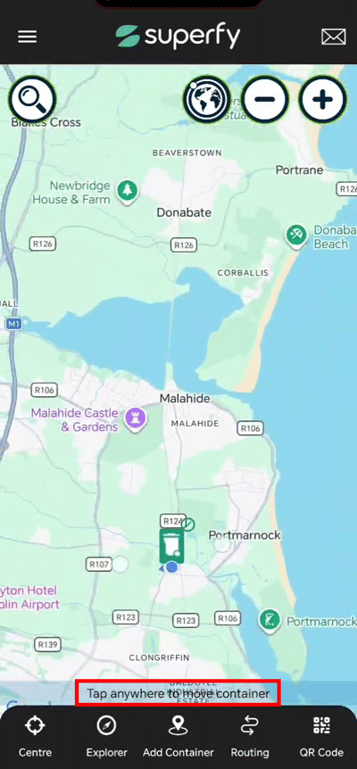
- Tap the spot on the map where the container should be.
- A message appears: "Move container location? It will update container information and container in selected coordinate." Tap MOVE to confirm, or CANCEL to choose again.
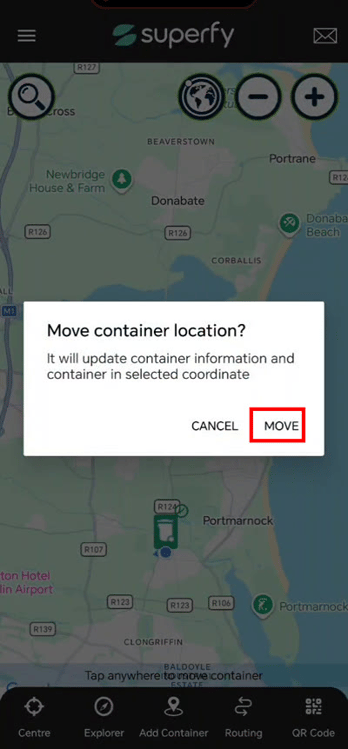
-
You will see "Pin Information has been changed". Tap OKAY.
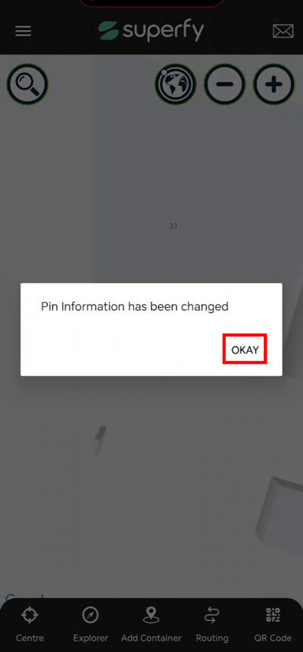
-
Check the map. The container pin is now at the spot you tapped.
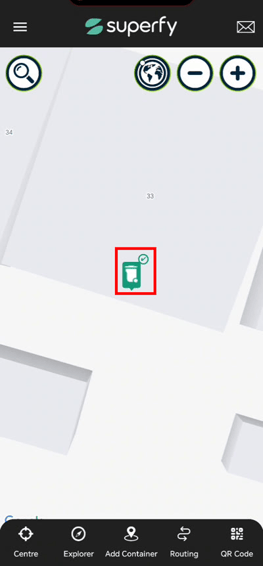
Which option should I use?
Move Container to Current Location
Move Container to Another Area
Where the pin goes
Your phone's GPS position
The spot or address you tap on the map
Must you be at the container?
Yes – always
No
Best for
On-site checks, new or relocated bins
Fixing a pin remotely, or when GPS is weak
Accuracy depends on
GPS signal strength
How far you zoom in before tapping
Troubleshooting and FAQs
-
I moved the pin to my current location by mistake while I wasn't at the bin. Use Move Container to Another Area to tap the correct spot on the map. Or go to the container and use Move Container to Current Location from there.
-
The pin landed a little way from the container. GPS can be off by a few metres, especially near tall buildings or under cover. Wait for the blue dot to settle and try again, or use Move Container to Another Area and zoom right in before tapping.
-
I don't see the move options when I tap the pin. Make sure you tapped the container pin itself, not a cluster (a circle with a number such as 5 or 20+). Zoom in until the individual pin shows, then tap it. If the options are still missing, contact your Superfy administrator.
-
Nothing happens when I choose Move Container to Current Location. Check that Location is on in your phone settings and that the Superfy App is allowed to use it.
-
I tapped the wrong spot on the map. Tap CANCEL in the confirmation message and tap again. If you already confirmed, repeat the steps to move it to the right place.