![superfy Logo-Neg-4.png]](https://knowledge.superfy.com/hs-fs/hubfs/superfy%20Logo-Neg-4.png?height=30&name=superfy%20Logo-Neg-4.png)
Summary
A factory reset returns your Superfy Mini to its original out-of-the-box settings. There are two ways to do it:
| Method | Best for | What you need |
|---|---|---|
| Method 1: ToolBox app | Everyday use, as the device stays sealed. | Access to the device, and an NFC-capable smartphone with the ToolBox app. |
| Method 2: Hardware button | When the app can't read the device. | Access to the device, and a 2 mm Allen key to open it. |
Both methods produce the same result.
In this article
- Method 1: Reset using the ToolBox app
- Method 2: Reset using the hardware button
- Troubleshooting
- Contacting support
⚠️ Only carry out a factory reset on devices supplied by Superfy. Devices supplied by Superfy are factory configured to reconnect on their own after a reset. Resetting a device from any other source may leave it unable to reconnect. If you're not certain where your device came from, contact Superfy support at support@superfy.com before going any further.
A factory reset cannot be undone.
Method 1: Reset using the ToolBox app
You'll hold your phone against the device twice during this process: once to read the device, and once to apply the reset. The reset is not complete until the second tap succeeds.
Step 1: Open the ToolBox app
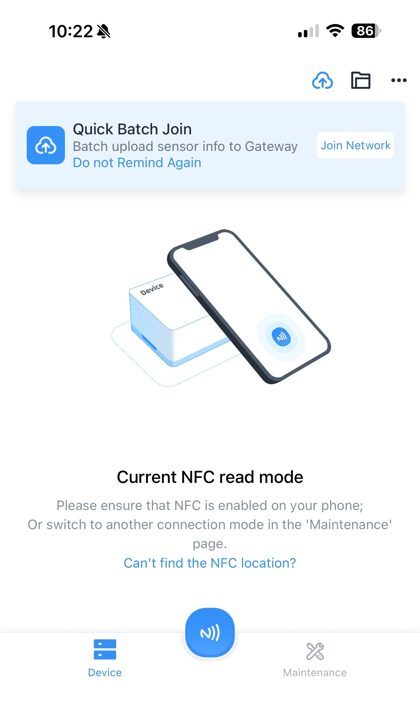
Open ToolBox on your smartphone. The home screen shows "Current NFC read mode".
Make sure NFC is enabled on your phone. If you're not sure where your phone's NFC antenna is, tap "Can't find the NFC location?" for guidance.
Step 2: Read the device
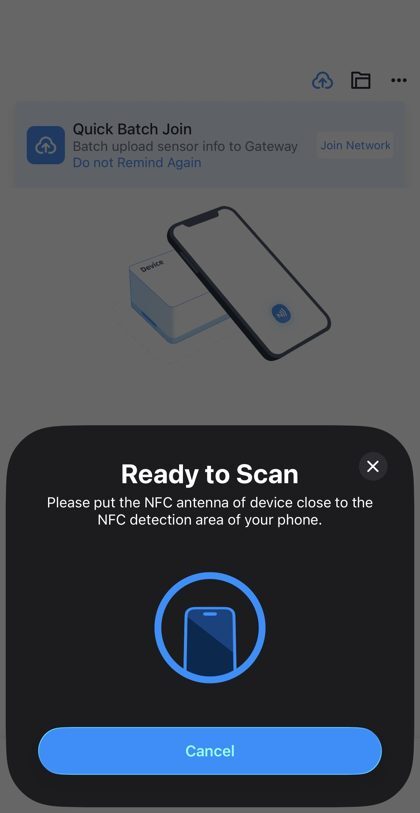
Tap the NFC button at the bottom of the screen. The app shows "Ready to Scan" and asks you to put the NFC antenna of the device close to your phone's NFC detection area.
-
Hold your phone against the Superfy Mini and keep it still.
-
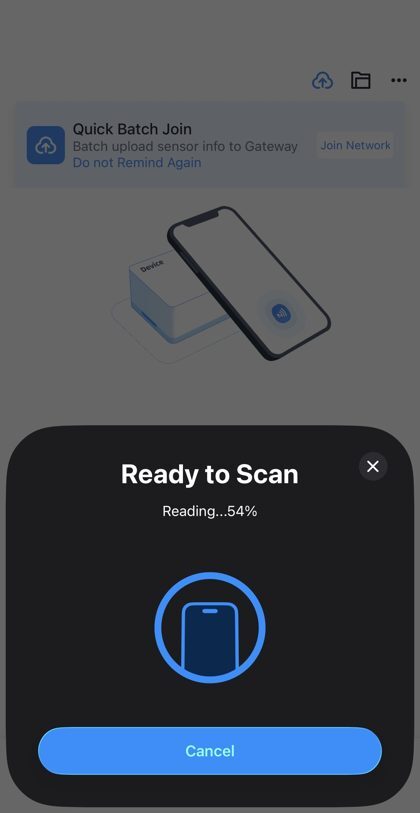
The app shows the reading progress. Don't move the phone until it finishes.
-
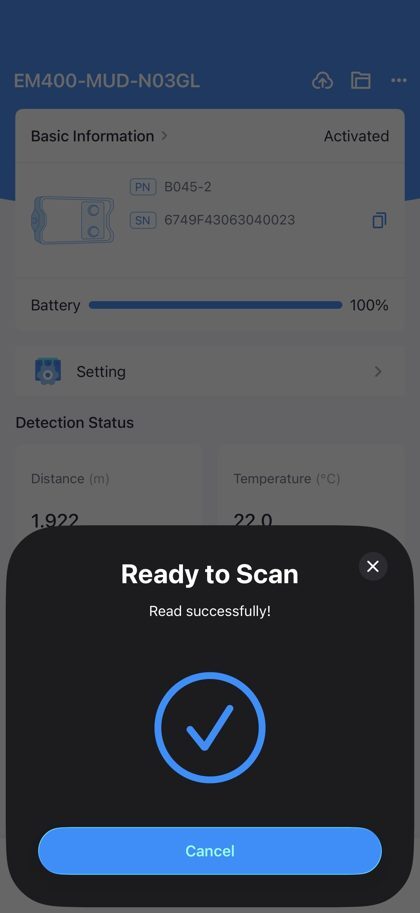
When it's done, you'll see "Read successfully!"
Step 3: Check you have the right device
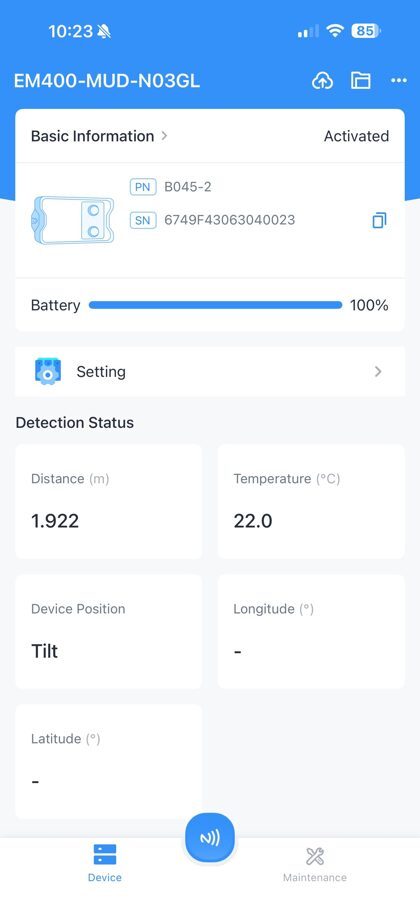
The Device page opens, showing the device's serial number, battery level and current readings. Check the serial number matches the device you intend to reset.
Step 4: Go to Maintenance and tap Reset
-
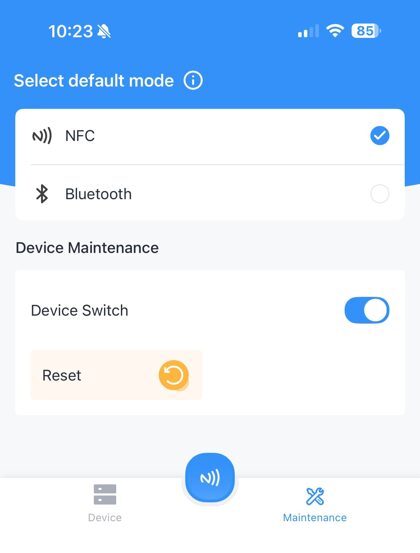
Tap "Maintenance" at the bottom right of the screen, then tap "Reset".
Step 5: Confirm the warning
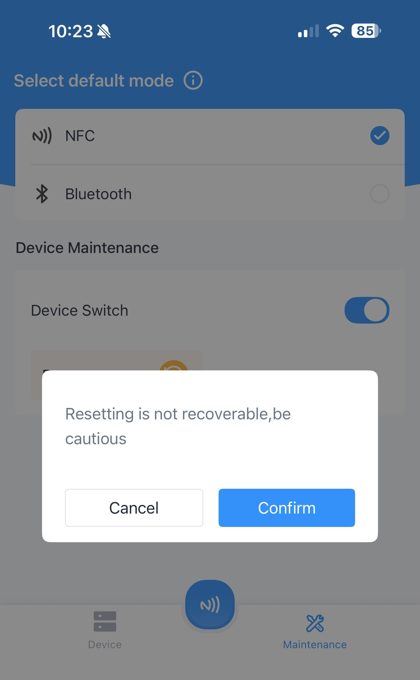
A warning appears: "Resetting is not recoverable, be cautious."
-
Tap "Confirm" to continue, or "Cancel" to stop.
Step 6: Hold your phone against the device again
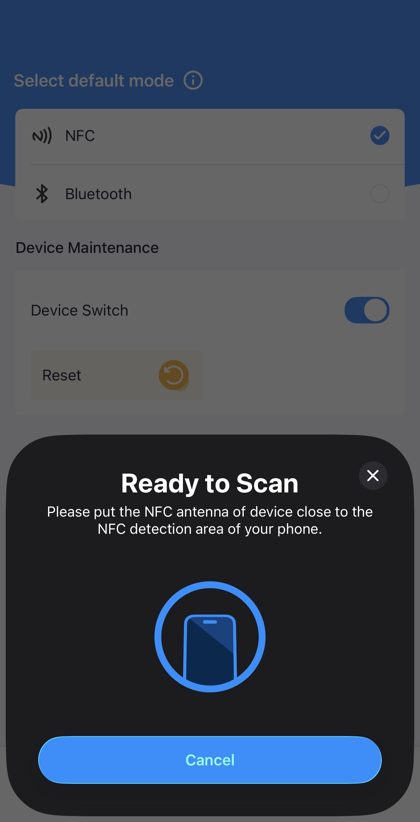
The app shows "Ready to Scan" a second time. This is the tap that actually applies the reset.
-
Hold your phone against the Superfy Mini again and keep it still.
Step 7: Confirm the reset was applied
The app shows "Reset successfully!" The device has now been reset to factory settings.
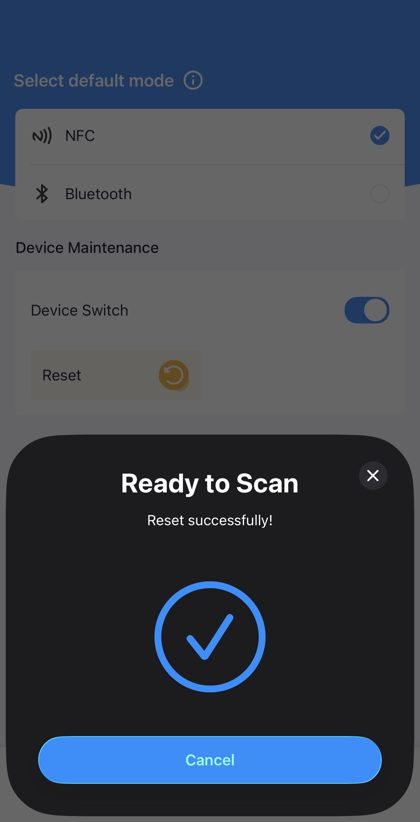
This message is your confirmation. The device has an LED indicator inside, but you can't see it with the cover on, so this message is your only confirmation. If you don't see "Reset successfully!", assume the reset did not go through and try again from Step 4.
Step 8: Turn the device off and on again (recommended)
We recommend power cycling the device after a reset.
-
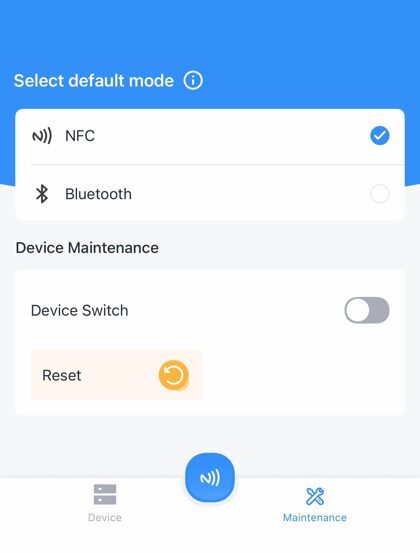
On the Maintenance page, switch Device Switch off.
-
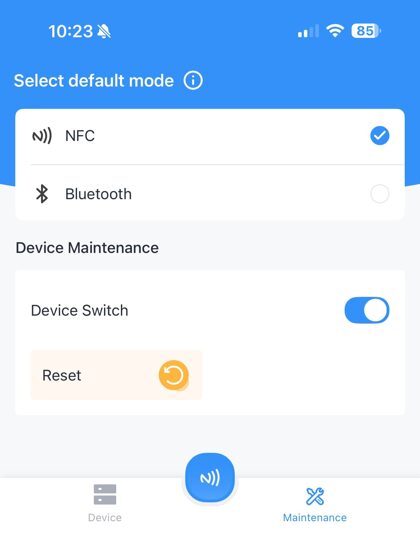
Wait a few moments, then switch Device Switch back on.
Method 2: Reset using the hardware button
Use this method only if you can't reset the device using the ToolBox app. This method requires you to open the device.
Opening the device breaks the weather seal. The Superfy Mini is sealed against water and dust, and that protection depends on the cover being refitted correctly. Only open the device indoors or in dry conditions, and do not remove or disconnect the batteries at any point.
Step 1: Remove the cover screws
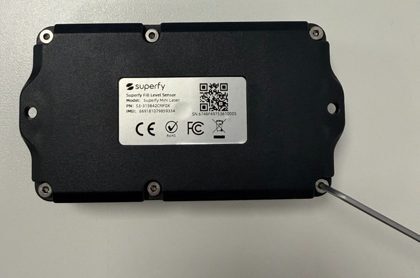
You will need a 2mm Allen key for this step.
-
Place the device face down so you can see the label, then undo the six screws around the edge of the cover.
Step 2: Lift off the cover
-
Lift the cover straight off. The seal sits inside the cover, so take care not to dislodge or damage it. Put the cover somewhere clean while you work.
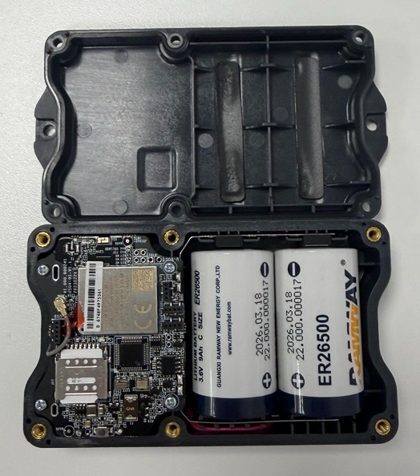
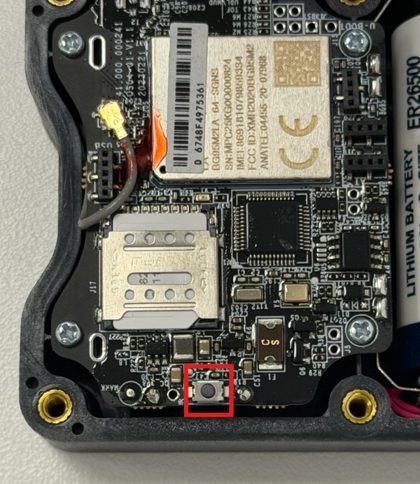
Step 3: Locate the power button
Inside you'll see the circuit board on one side and the two batteries on the other. Take care not to snag the thin antenna wire running across the board.
-
The power button is the small round button near the bottom of the circuit board, below the SIM card slot. It is outlined in red below.
Step 4: Hold the power button
The circuit board has an LED indicator that tells you what the device is doing. It is outlined in red below.
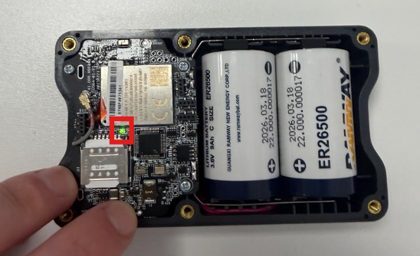
-
Press and hold the power button for more than 10 seconds.
-
The LED stays on while you hold the button. Keep holding past this. After 10 seconds the LED blinks rapidly, which confirms the device has been reset. You can then release the button.
Don't release the button too early. At 3 seconds the button simply switches the device off or on. The reset only happens if you keep holding until the LED blinks.
What the power button does
| Function | What you do | LED indication |
|---|---|---|
| Check whether the device is on | Quickly press the button | Lights up if the device is on, stays off if the device is off |
| Switch on | Press and hold for more than 3 seconds | Off, then on |
| Switch off | Press and hold for more than 3 seconds | On, then off |
| Reset | Press and hold for more than 10 seconds | Blinks rapidly |
Step 5: Refit the cover
-
Check the seal is clean, undamaged and seated properly in the cover, then place the cover back on the device. Refit the six screws and tighten them evenly until snug. Do not overtighten.
Troubleshooting
The app doesn't detect the device over NFC
- Check NFC is enabled in your phone's settings.
- Make sure you're holding the correct part of your phone against the device. The NFC antenna position varies by phone model. Tap Can't find the NFC location? on the ToolBox home screen for help.
- Take your phone case off. Even a thin case can stop the phone reading the device.
- Hold the phone still until the app confirms. Moving it too early cancels the operation.
- If it still doesn't read, move the phone away from the device and bring it back again to retry.
I got "Read successfully!" but the reset didn't complete
The read and the reset are two separate taps. After confirming the warning, you need to hold your phone against the device a second time. If you missed this, start again from Step 4.
The LED didn't blink when I held the power button
You most likely released the button too early. Holding for 3 seconds only switches the device off or on. Press and hold again, and keep holding for more than 10 seconds until the LED blinks rapidly.
Contacting support
If you have any issues resetting your Superfy Mini, email Superfy support at support@superfy.com.
Please include your device serial number. You can find it on the Device page in the ToolBox app, or on the label on the device itself.