![superfy Logo-Neg-4.png]](https://knowledge.superfy.com/hs-fs/hubfs/superfy%20Logo-Neg-4.png?height=30&name=superfy%20Logo-Neg-4.png)
What "Offline" means
Sensors send a heartbeat reading to the Superfy Platform on a regular schedule — by default, every 6 hours. If the platform doesn't receive any communication from a sensor for 24 hours, the container's status changes to Offline and the device issue will show "Offline more than 24 hours." You can see when the sensor last communicated by checking the Last Seen timestamp on the Devices page.
A sensor showing offline doesn't always mean it has failed. Often the cause is something simple, like the sensor having been switched off, or a temporary loss of cellular signal.
Common causes of offline sensors
- Sensor switched off — the sensor may have been deactivated accidentally, or turned off and never reactivated after maintenance or collection work. Restarting it resolves this.
- Depleted battery — low signal environments reduce battery life, as the device works harder to connect. If the sensor no longer responds when restarted, or the ToolBox app shows a very low battery percentage on a Superfy Mini, the batteries may need replacing. Both sensors use replaceable batteries.
- Poor cellular signal — containers moved indoors, underground, into metal enclosures, or into areas with weak network coverage may lose connection. If the container was recently relocated, this is a likely cause.
- Physical damage — impacts during collection or vandalism can damage the device.
Before you visit the container: Check the Last Seen timestamp on the Superfy Platform or App first. If the sensor last communicated only slightly over 24 hours ago, it may reconnect on its own at the next heartbeat. If it has been silent for several days, continue with the steps below.
Step 1 — Inspect the sensor on site
At the container, check that:
- The sensor is still securely mounted in its bracket and hasn't been knocked loose, damaged, or removed.
- The container hasn't been moved to a new location — for example indoors, underground, or beside large metal structures — where cellular signal may be much weaker.
- The sensor face is clean and free of dirt or debris. Gently wipe the sensor lenses or ultrasonic horns with a clean cloth — no detergent required, and never spray cleaner directly onto the device.
Step 2 — Restart the sensor
Superfy Pro
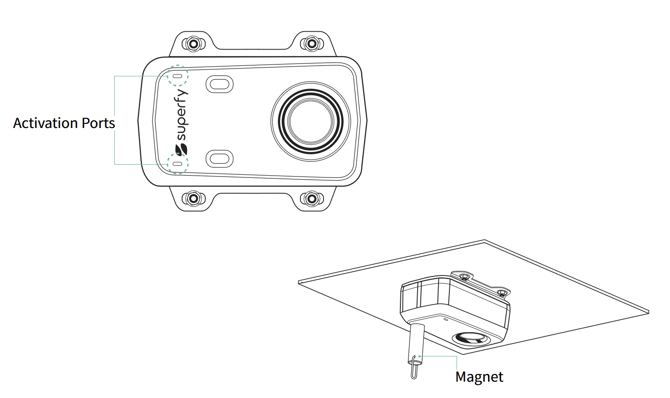
The Superfy Pro is switched on and off using a strong magnet held at either of the activation ports on the device.
- Hold the magnet at one of the activation ports. After approximately 3–4 seconds the device will beep 5 times, followed by a long beep, then silence. The sensor is now off.
- Wait a few seconds, then hold the magnet at the activation port again. Listen for 5 beeps followed by an up-tone sound — the sensor is now on.
- After a few minutes, you will hear a second up-tone sound, confirming that data is being sent successfully to the cloud.
If the sensor makes no sound at all when you apply the magnet, the batteries may be depleted or the device may have developed a fault. Skip to the "Contact Superfy Support" section below.
Superfy Mini
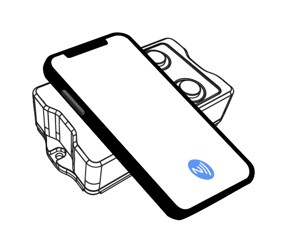
The Superfy Mini is restarted using the ToolBox app via NFC. You'll need a smartphone with NFC enabled and the ToolBox app installed (available on Google Play and the App Store).
- Enable NFC on your smartphone and open the ToolBox app. For a reliable scan, remove your phone case if you have one.
- Hold the Superfy Mini's NFC area (on the top face of the device) steadily against your smartphone's NFC area, then tap the NFC icon at the bottom of the ToolBox screen to scan the device.
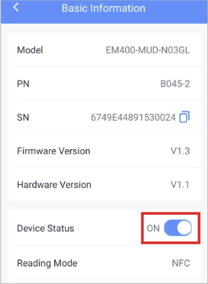
- Once the device is recognised, tap Basic Information.
- Check the Device Status field:
- If it shows Off, tap the toggle to turn the sensor on, then scan the device against your phone's NFC area again to apply the change.
- If it shows On, toggle it Off, scan to apply, then toggle it back On and scan once more to complete the restart.
- Scan the device one final time and confirm that the status shows Activated at the top of the screen, and that under Basic Information the Network Status shows Activated.
- While you're in Basic Information, take note of the Battery percentage and Signal Strength values. These are helpful for diagnosing the problem, and for Superfy Support if you need to escalate. A very low battery percentage or weak signal reading points to the likely cause of the sensor going offline.
If the ToolBox app can't read the device, move your phone away and back again and retry. If the device still isn't recognised after several attempts, skip to the "Contact Superfy Support" section below.
Step 3 — Confirm the sensor is transmitting
Superfy Pro — take a manual reading
- Hold the magnet at either activation port until you hear 1 beep.
- Remove the magnet — you will immediately hear an up-tone sound.
- After a few minutes, a second up-tone sound confirms the data has been sent to the cloud.
Superfy Mini — take a manual reading
-
Turn the device off and on, confirm in the ToolBox app that the Network Status shows Activated and a Signal Strength value is displayed.
Both sensors — verify on the Superfy App
- Check the last 50 data on the Superfy App to confirm a new reading has arrived with a current date and time-stamp, and that the container is no longer showing as offline. Learn More
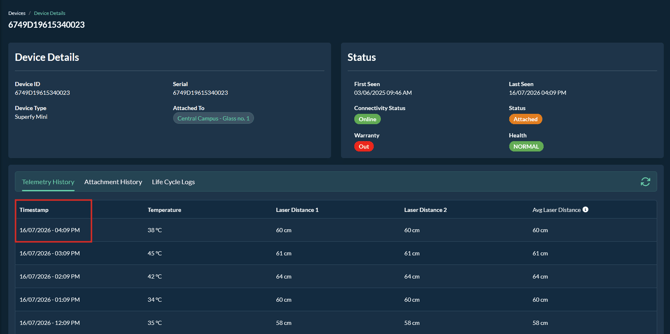
Both sensors — verify on the platform
-
Open the Device page and check the latest data. Confirm a new reading has arrived with a current date and time-stamp, and that the container is no longer showing as offline.
Contact Superfy Support
If the sensor still shows offline after completing the steps above, or it doesn't respond when restarted, contact support@superfy.com. To help us resolve the issue quickly, please include:
- The Sensor Serial Number— found on the side of the Superfy Pro and the bottom of the Superfy Mini, next to the QR code.
- The Container Name and Location as shown on the Superfy Platform
- The troubleshooting steps you've already tried, and what happened (e.g. "no beeps when magnet applied" or "ToolBox shows Device Status On but Network Status not Activated")
- For a Superfy Mini: the Battery and Signal Strength values shown in the ToolBox app, if you were able to read the device
- Photos of the sensor and its installation, if possible.