![superfy Logo-Neg-4.png]](https://knowledge.superfy.com/hs-fs/hubfs/superfy%20Logo-Neg-4.png?height=30&name=superfy%20Logo-Neg-4.png)
Before You Start
You'll need:
- An activated Micro-SIM (3FF), PIN lock disabled.
- A screwdriver.
- An NFC equipped smartphone with the ToolBox app installed. Click here for information on how to download.
- Your APN from your network provider.
Two things to check with your provider first:
- The SIM must support PSM (Power Saving Mode). Without it, battery life drops significantly.
- NB-IoT or LTE-M coverage must exist at your sites.
Step 1 — Insert the SIM
Do this indoors, somewhere clean and dry.
- Remove the back cover screws and lift the cover off.
-
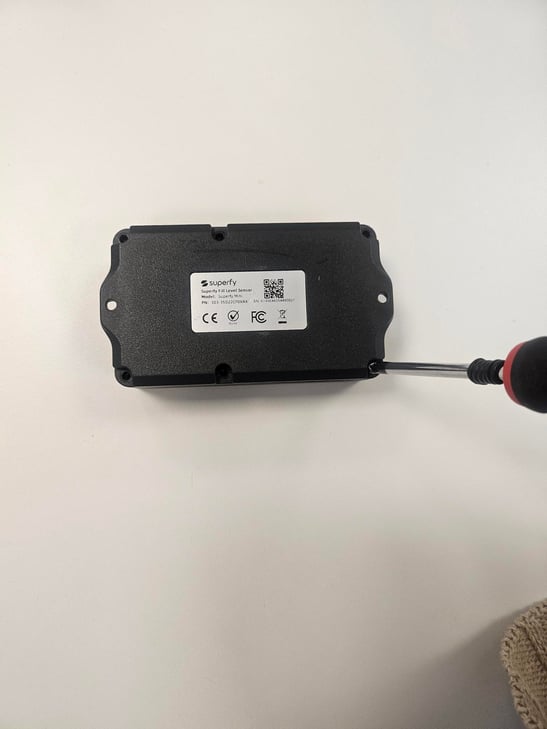
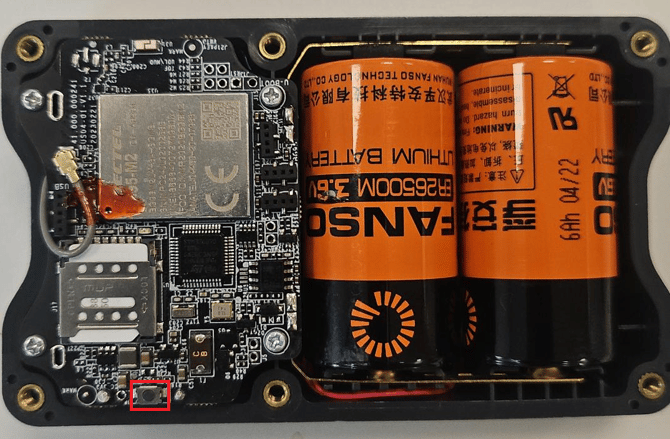
Insert the Micro-SIM in the orientation shown in the photo below. The metal casing for the SIM slides between the locked and unlocked position.
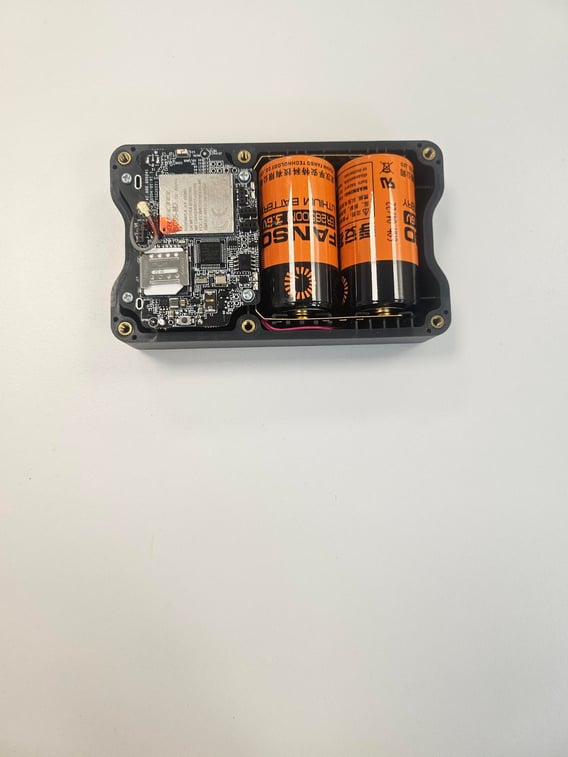
Leave the cover off and the device switched on until you've finished. You may need access to the internal power button in Step 3, and if anything doesn't work you can re-seat the SIM without unscrewing again.
The Mini doesn't support hot-swapping, so it won't pick up the new SIM until it's restarted.
Step 2 — Set the APN
-
Open ToolBox and hold your phone against the NFC area of the device to read it. You may need to press the blue NFC button on the Toolbox app to enter scanning mode. Take your phone case off if it won't read.
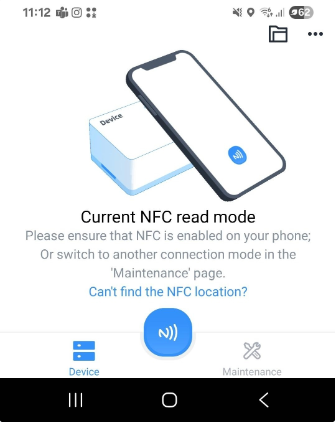
-
Then tap Setting → Network → Cellular:
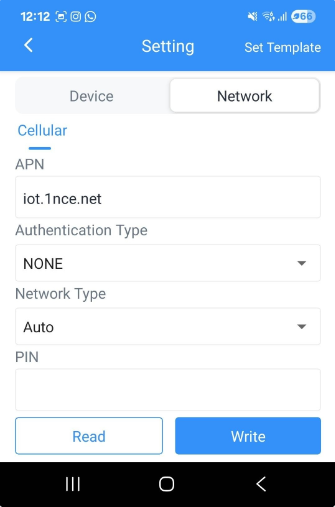
| Field | What to Enter |
| APN | Your provider's APN, exactly as supplied, these are case-sensitive. |
| Authentication Type | NONE |
| Network Type | Auto |
| PIN |
Leave blank, unless your SIM is PIN-locked. |
-
Tap Write, then hold your phone to the device again to apply. Tap Read to confirm it saved.
Don't change anything on the Device tab. The Application Mode, Server Address and certificates are what connect your device to the Superfy platform, and none of them need to change when you swap a SIM. If they're altered or deleted the sensor will stop reporting, so contact Support rather than trying to restore them yourself.
Step 3 — Restart and check
-
Press and hold the internal power button for 3+ seconds to switch the device off, then again to switch it back on. It now starts up with both the new SIM and the new APN in place.
-
You can also power it off and on using the Device Status toggle on the Basic Information screen in the ToolBox app.
-
Registration takes about 2 minutes with a new SIM. Read the device in ToolBox again and open Basic Information:
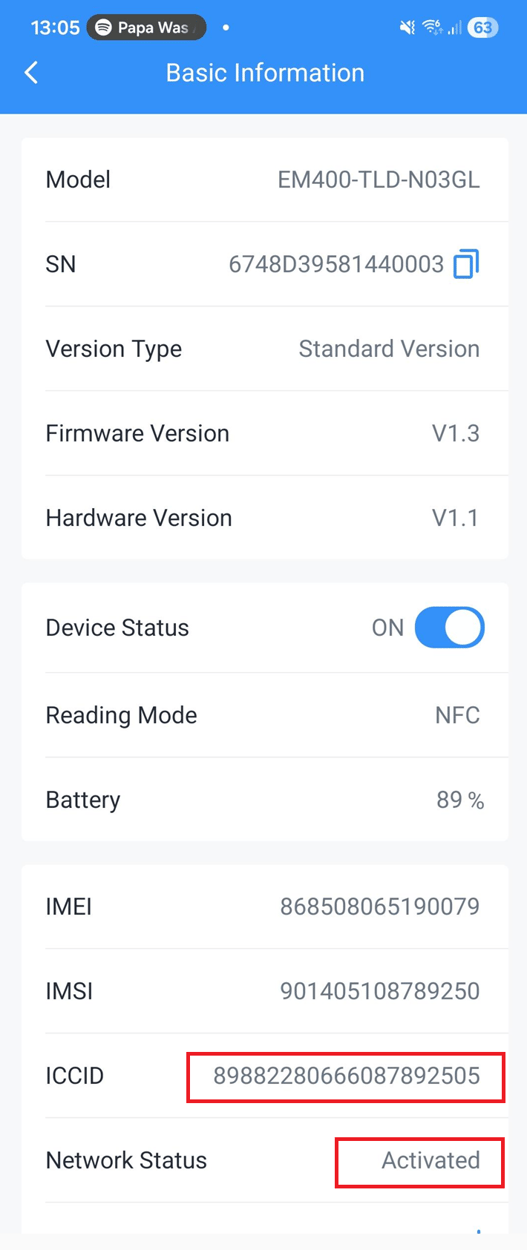
- ICCID should show your new SIM.
- Network Status should show Activated.
-
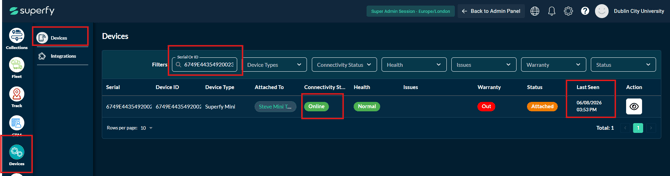
Log into your Superfy Account and navigate to the Devices menu and Search for your device. The device sends a reading when it powers up, so a new data point should appear within a few minutes. You don't need to wait for the next scheduled report.
Don't have a login? Contact your Admin or Customer Success Manager or email support@superfy.com
-
After that first reading, the Mini reports on its normal schedule to save battery (set under Setting → Device → General).
Step 4 — Close it up
-
Once the device is reporting correctly:
-
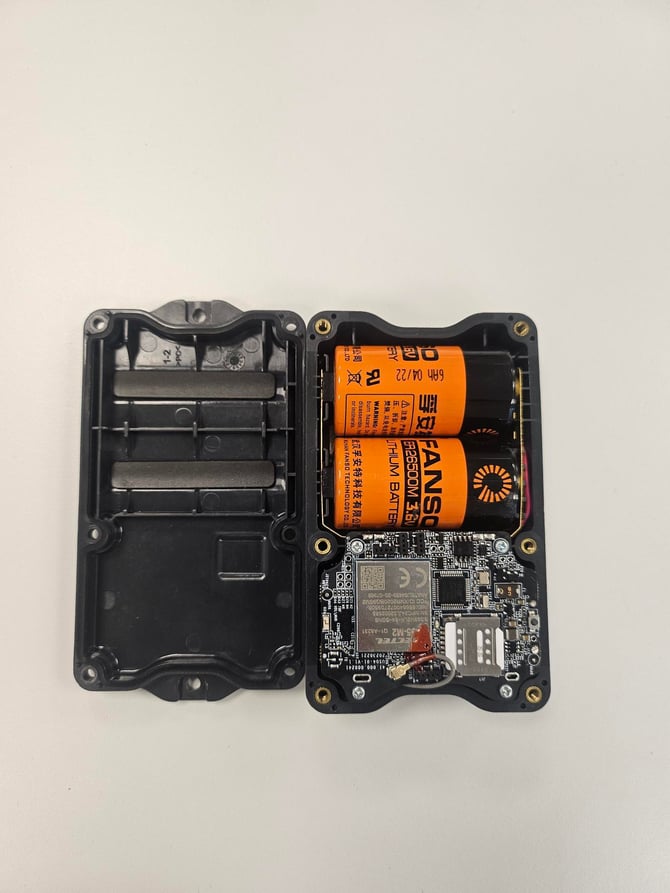
Check the rubber gasket is clean, undamaged and correctly seated in its channel, this keeps the device waterproof.
-
Refit the cover and tighten the screws evenly. Don't overtighten.
-
Troubleshooting
| Problem |
Fix |
| ICCID still shows the old SIM | The device wasn't rebooted, power-cycle it. |
| Network Status isn't Activated | Check the SIM is active with your provider, and re-check the APN spelling. |
| Activated, but no data on the dashboard | Contact Support, don't change the Device tab settings yourself. |
Using your own SIM means we can't see connectivity diagnostics for that device, so network faults will need to go to your own provider.
If you have any questions or queries, contact us at support@superfy.com