![superfy Logo-Neg-4.png]](https://knowledge.superfy.com/hs-fs/hubfs/superfy%20Logo-Neg-4.png?height=30&name=superfy%20Logo-Neg-4.png)
Note: This article is only relevant if the sensor is actively transmitting data to the platform.
If your sensor has stopped transmitting altogether, please refer to Missing Sensor Data –
Reporting Interval Troubleshooting for guidance.
1. Full or Empty Bin
- If the bin is genuinely full or empty and has not been used for an extended period, the
distance reading may naturally remain flat. This does not necessarily indicate a fault with the sensor.
2. Obstructed Sensor
- Dirt, debris, or waste material may be blocking the sensor, preventing it from detecting
changes in the fill level and causing it to return the same reading repeatedly.
Troubleshooting:
Superfy highly recommends regular cleaning of the sensor. Gently clean the optical lens or lenses with a clean cloth, no detergent required. Wipe over both the device and the bracket removing any dirt and grime from both surfaces. Do not spray cleaner directly onto the device. There is no need to remove the device from the container. Once cleaned, take a manual reading to verify that the sensor is now detecting changes in the fill level correctly.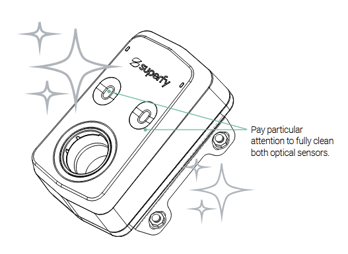
How to Take a Manual Reading:
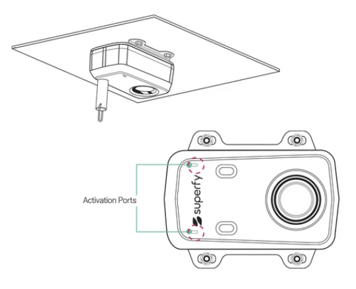
Superfy Pro: Hold a strong magnet at either of the activation ports until you hear 1 beep.
Remove the magnet and you will immediately hear an up-tone sound. After a few minutes,
you will hear a second up-tone sound, indicating that the data has been successfully sent
to the platform. You can now view the manual reading data via the Superfy Platform or App.
Superfy Mini: Using the Toolbox App, turn the device off and back on again. After a few
minutes, you will be able to view the updated reading via the Superfy Platform or App.
3. Sensor Mounted Incorrectly
- If the sensor is not mounted correctly, with the sensing element facing directly downwards towards the centre bottom of the container, the sensor may be aimed at a fixed surface such as the side of the bin, causing it to repeatedly return the same distance reading.
Troubleshooting:
Ensure that the sensor is facing directly downwards towards the centre bottom of the container. For full installation guidance, please refer to the Superfy Pro Fill Level Sensor Installation Guide. Once corrected, take a manual reading to verify that the sensor is now detecting changes in the fill level correctly.
4. Physical Damage to the Sensor
- If the sensor has been physically damaged, it may return a fixed or frozen reading, causing it to repeatedly report the same distance.
Troubleshooting:
Check that there is no obvious physical damage to the sensor. If you notice any physical damage, please contact support@superfy.com. They can provide more information and assist with the RMA process.
5. Condensation or Moisture
- Buildup of moisture on the sensor lens, particularly in outdoor or humid environments,
could cause the sensor to repeatedly return the same distance reading.
Troubleshooting:
Superfy highly recommends regular cleaning of the sensor. Gently clean the optical lens or lenses with a clean cloth, no detergent required. Wipe over both the device and the bracket removing any dirt and grime from both surfaces. Do not spray cleaner directly onto the device. There is no need to remove the device from the container. Once cleaned, take a manual reading to verify that the sensor is now detecting changes in the fill level correctly.
6. Reflective Materials (Superfy Pro Only)
- Certain waste types or objects with reflective surfaces can cause the lasers to lock onto a
fixed false reading, resulting in the same distance being returned repeatedly.
Troubleshooting:
Check the current contents of the bin. If a reflective item is present, the reading may correct itself once the bin is emptied and refilled with normal waste. If the issue persists, it is likely caused by one of the other reasons listed in this article.